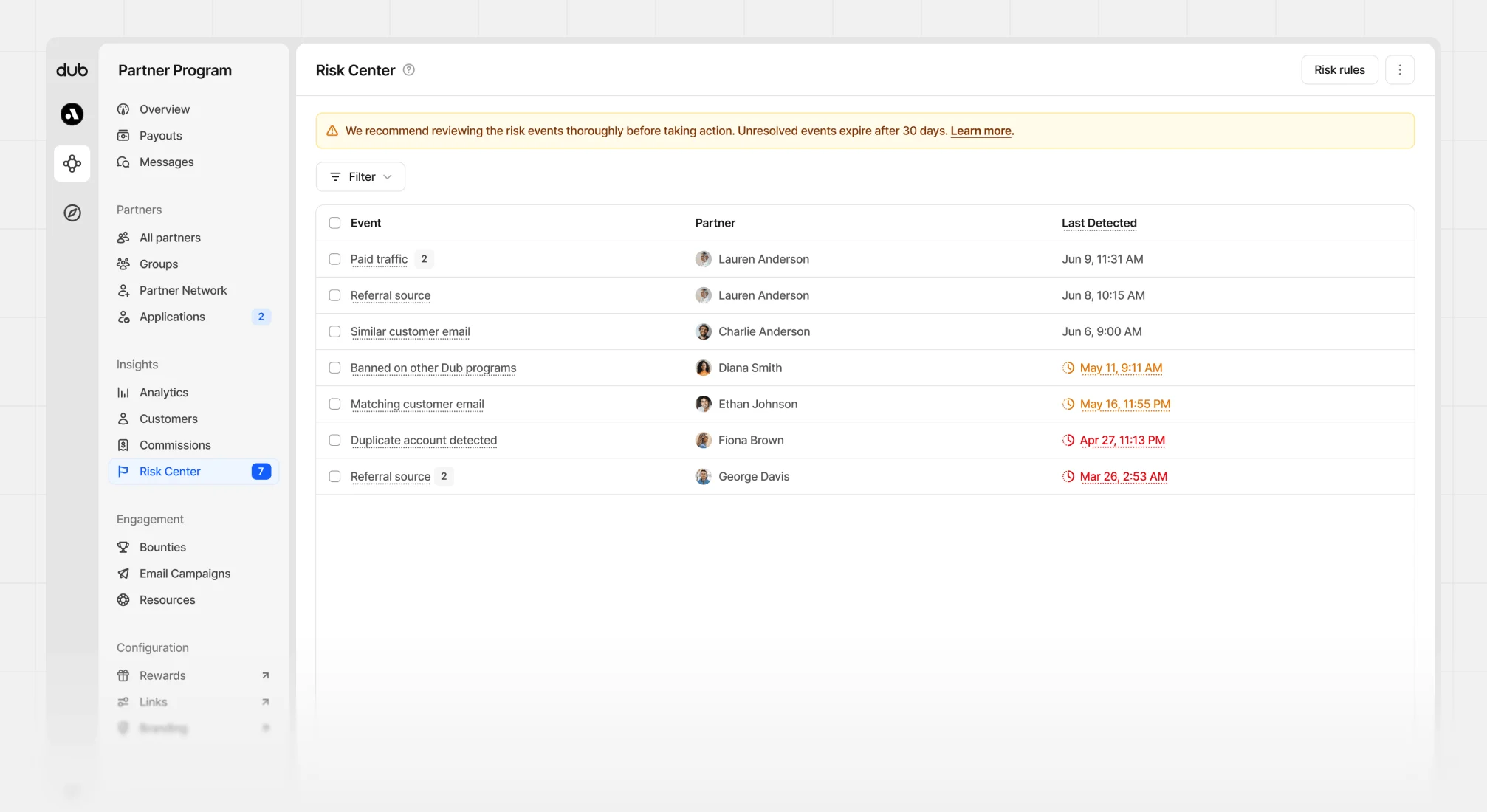
- Event: The specific unique risk event associated with a partner.
- Partner: The partner associated with the risk event.
- Last Detected: The date and time of the most recent occurrence of this risk event.
Risk event types
Here are the event types you might see flagged and detected in your program.Duplicate account detected
This partner was flagged by our system for having 2 or more Dub accounts. Please review to prevent abuse of program restrictions, caps, or bonuses. If the partner is legitimate and has multiple accounts, it’s recommended they merge their accounts to prevent any future issues. If the accounts are not merged, this can be a sign of self-referral, which is when a partner refers themselves to earn commissions or rewards.Matching customer email
This partner’s email address matches with a customer’s email address in your system. This can be a sign of self-referral, which is when a partner refers themselves to earn commissions or rewards.Suspicious customer email domain
This partner has referred a customer with an email address that uses a suspicious domain, such as a disposable or temporary email provider. This can be a sign of fraudulent activity, as these types of email addresses are often used to create fake accounts or to hide the identity of the referrer.Banned referral source
This partner has traffic coming from a referral source that you’ve banned in your risk rules. This can be a violation of your program’s terms if you don’t allow traffic from certain sources, and can also be a sign of fraudulent activity if the partner is running unauthorized ads to generate commissions.Paid traffic
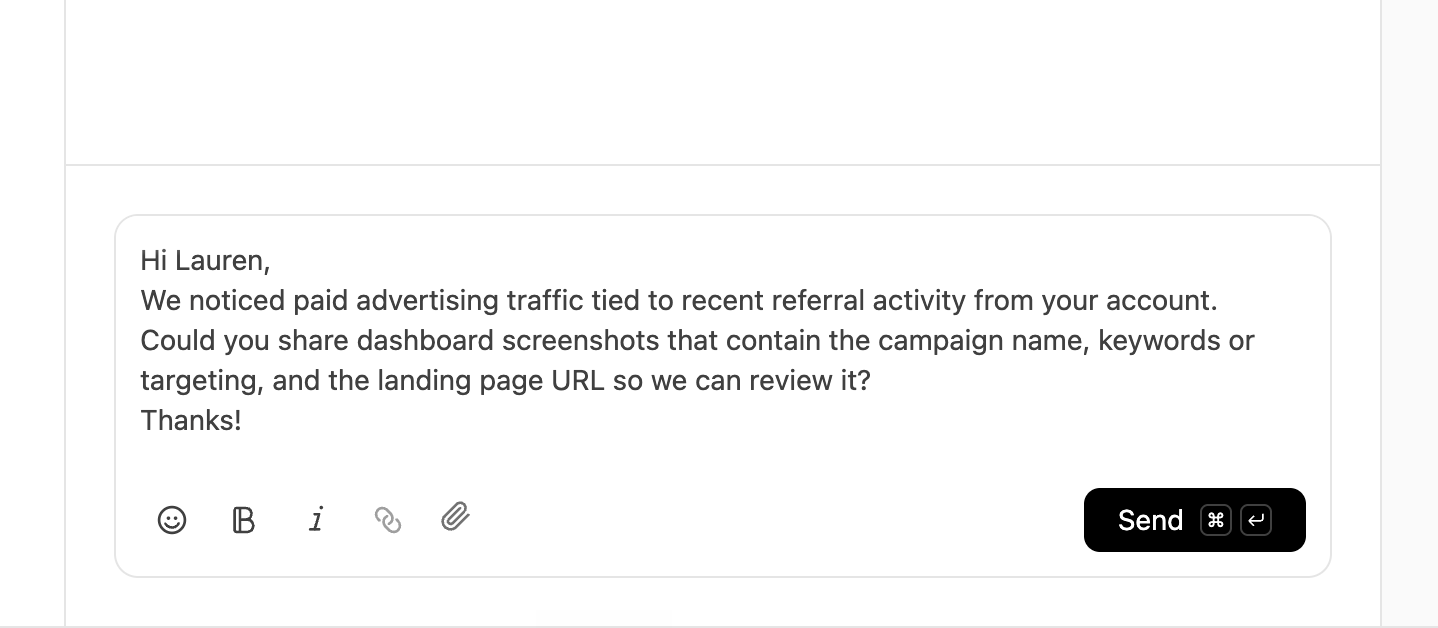
This partner has traffic coming from paid sources like Google Ads, Facebook Ads, etc. and can be a violation of your program’s terms. It can also be a sign of fraudulent activity if the partner is running unauthorized ads to generate commissions. We recommend getting clarification from the partner before banning them from your program. To make this easier, you can click the Request details button to auto-generate a message to the partner.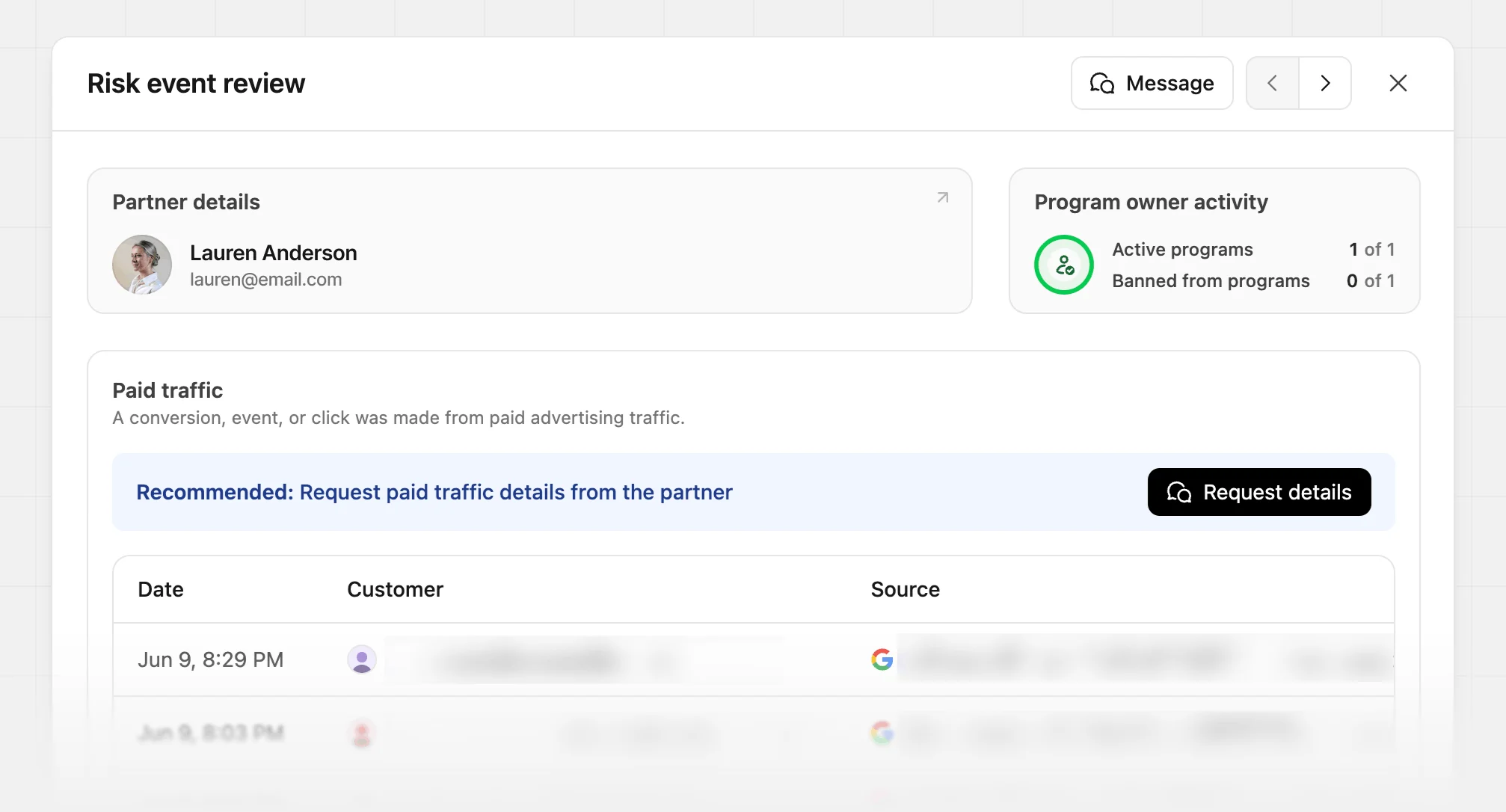
Cross-program ban
This partner was banned from one-or-more programs on Dub. Our risk team has reviewed this decision and confirmed the fraudulent behavior or terms of service violation.Reviewing risk events
Click on any table row to open the review panel. When reviewing events, there are three panels of information for each item.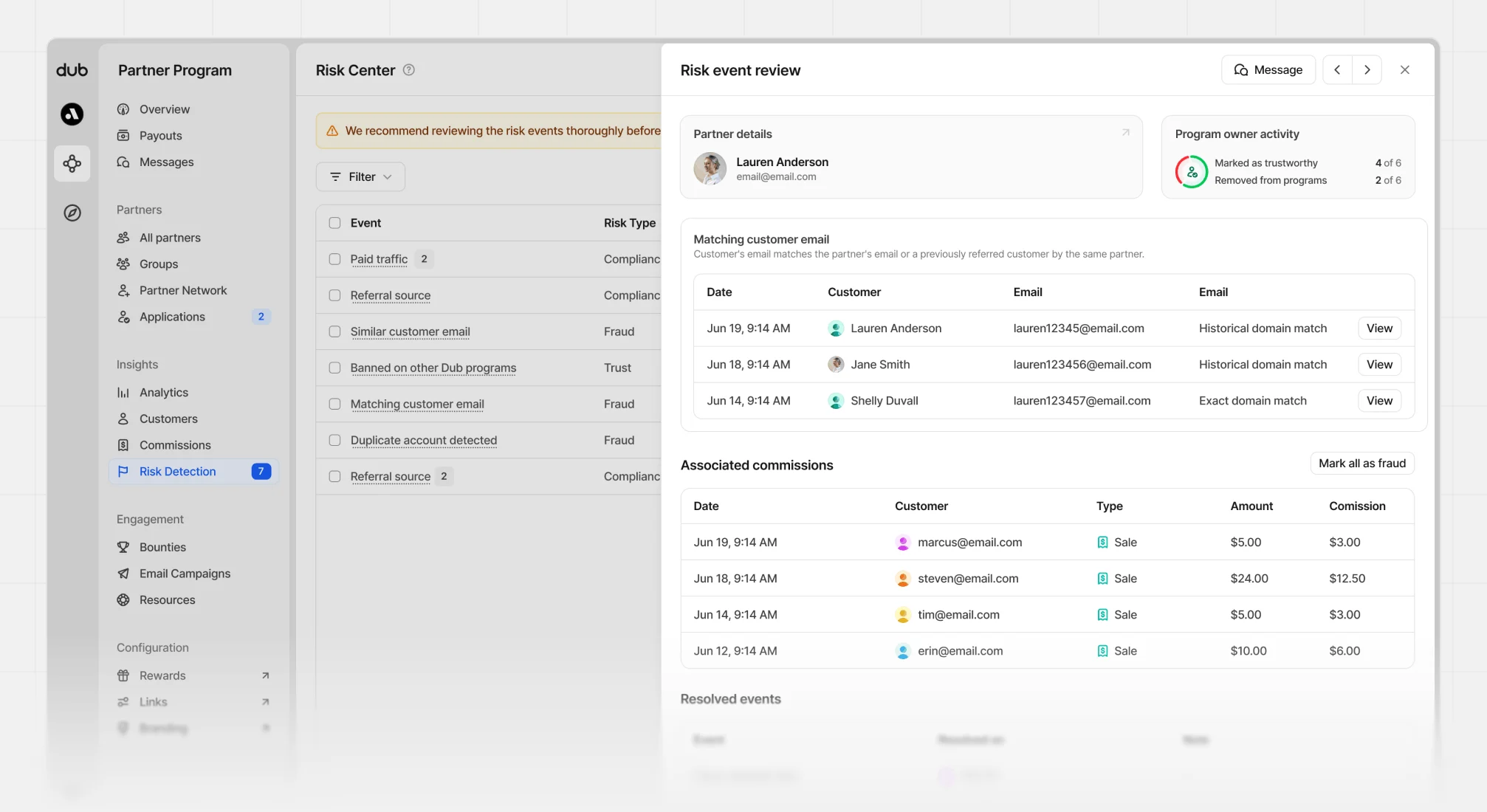
Partner information
This is the partner associated with the event. From this section, you can click to message them or to view their profile.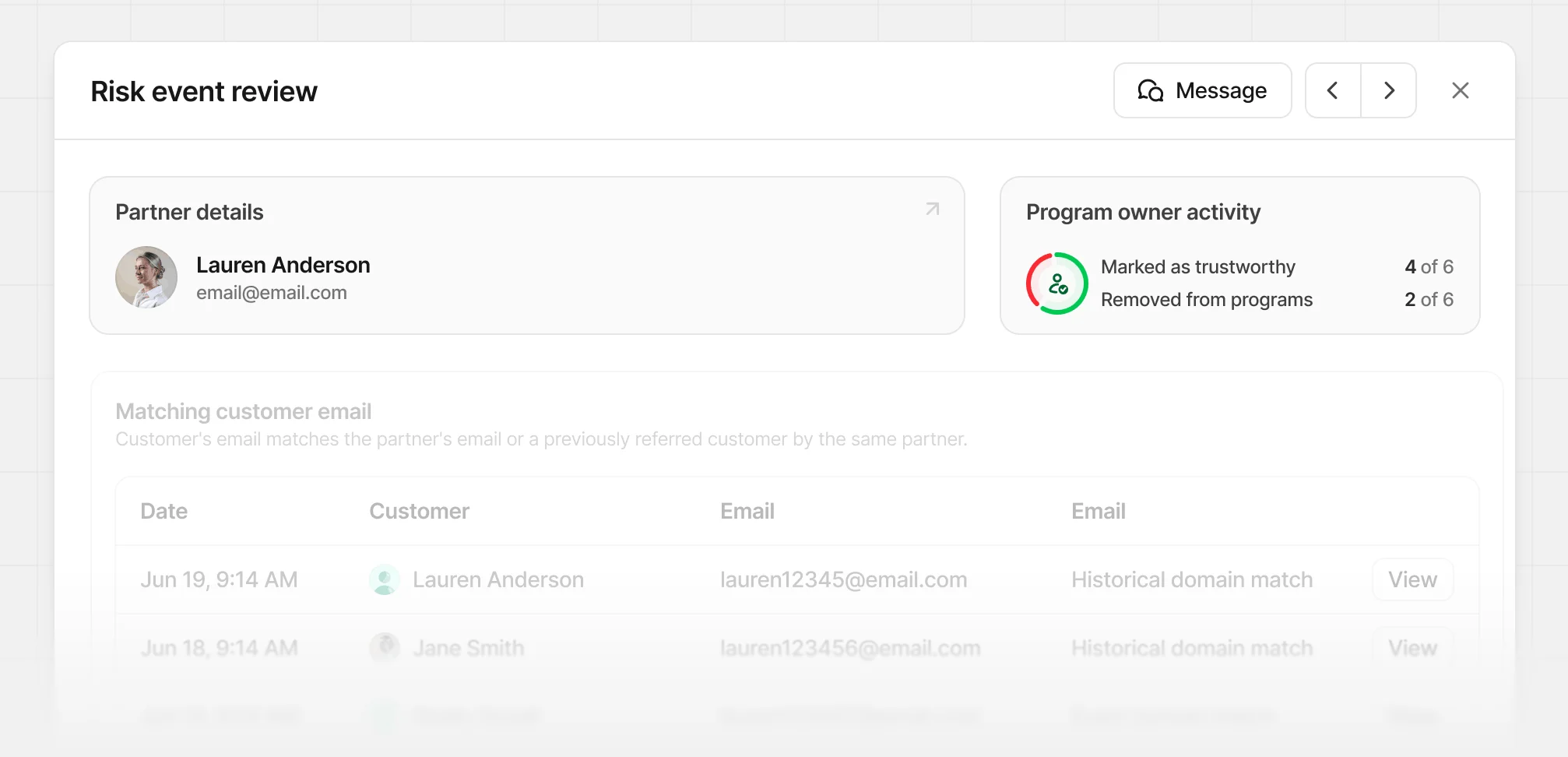
Event details
Here you’ll see the event type, description, and a line item for each flagged event for the same type associated with this partner.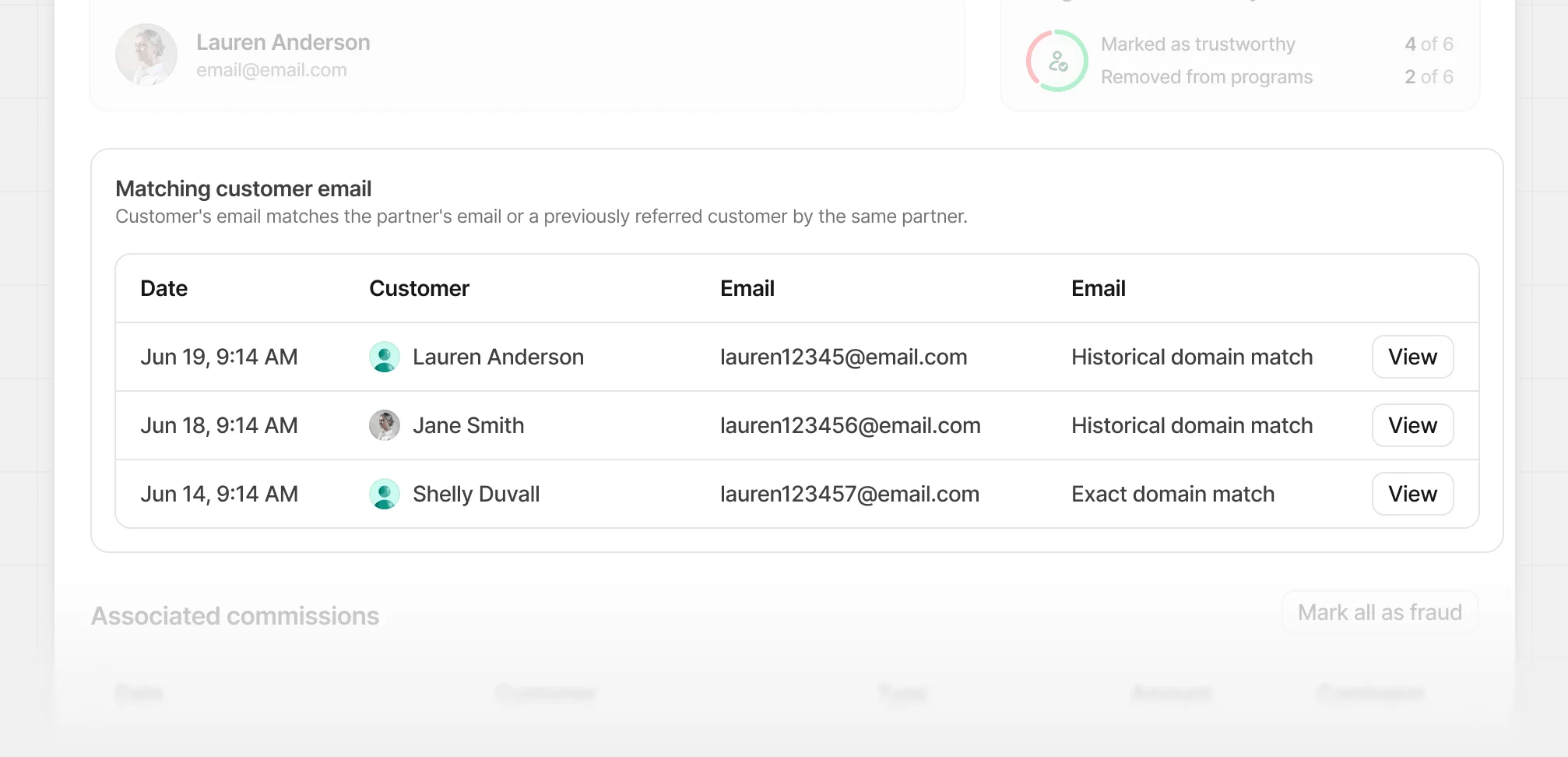
Associated commissions
If this partner has any pending commissions, you’ll see the list of all commissions on hold. These are any commissions that have occurred since the flagged event. Learn more here.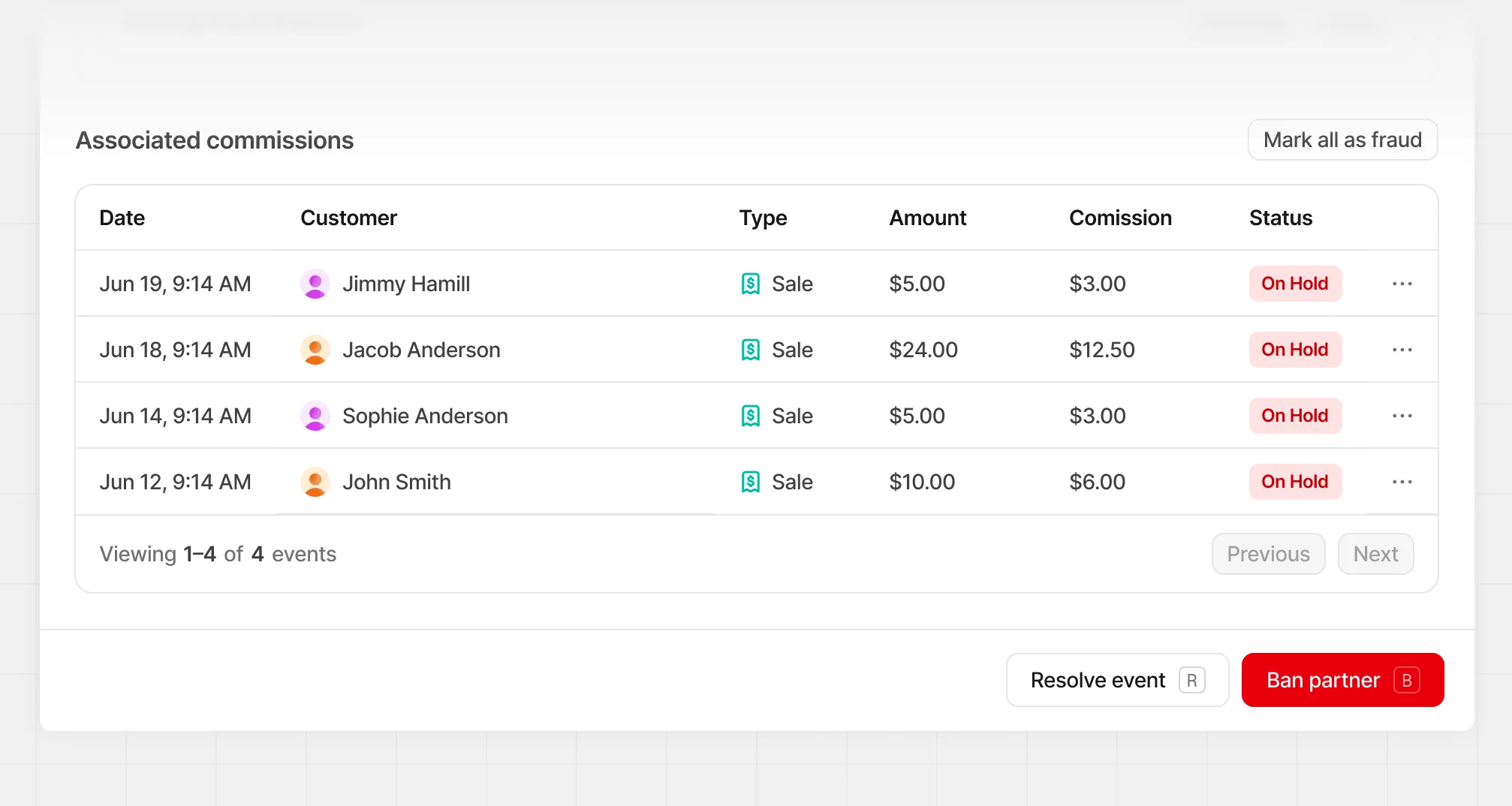
Resolving risk events
When reviewing events, we recommend taking your time and ensuring a proper investigation is done. This could involve:- Viewing multiple partner/customer profiles to verify if they are duplicates/self-referrals.
- Reviewing your internal sales information for any fraud signals (e.g. via Stripe Radar).
- Reaching out to the partner in question via our built-in messaging center to get clarification on their referral activity.
Associated commissions
For commissions that are on hold for this partner, you can perform the following:- Click Mark all as fraud to mark all commissions on hold as fraud and cancel them.
- You can individually change the commission status to
Fraudby clicking the⋯button and selecting Edit commission. - When resolving the event, any commissions not marked as
Fraudwill move toPending - When banning the partner, this will change any
On holdcommissions toCanceled.
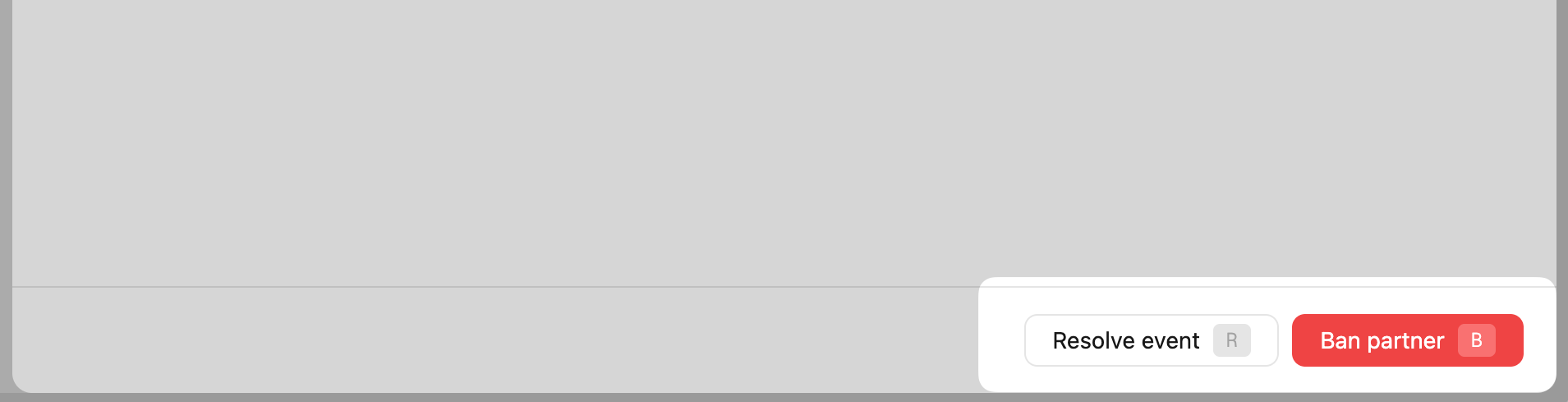
Resolve risk event
If a risk event is deemed to be benign, you can select the Resolve event option to mark the event as safe and keep the partner in your program. When confirming the decision, you’re able to provide optional additional notes about the steps taken to confirm the details, or any other information. If you trust this partner completely, you’re also able to Exclude from risk monitoring. When enabled, any future risk events won’t be flagged for this partner. This can be changed anytime in the partner’s advanced settings.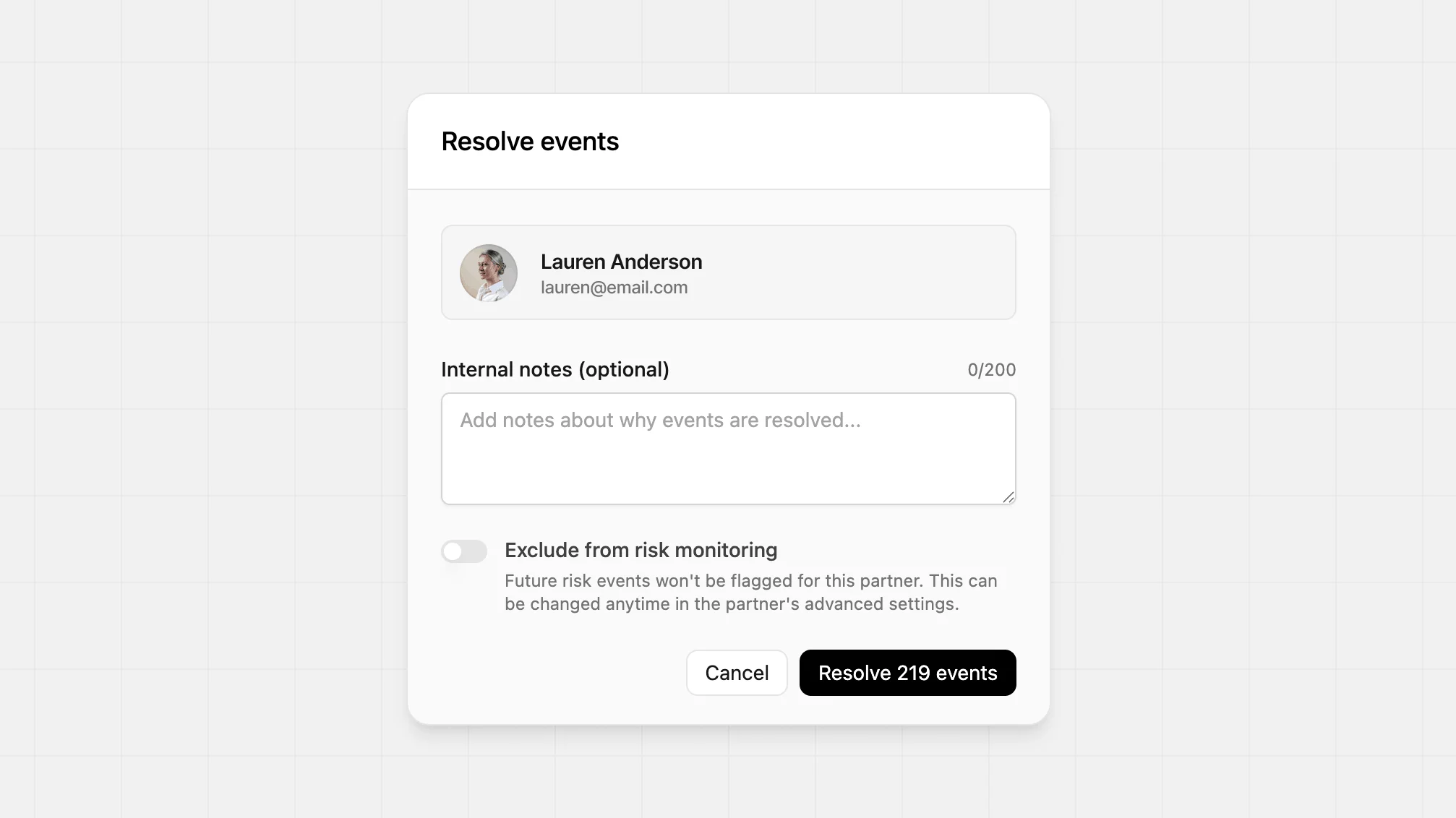
Ban partner
If the risk event turns out to be malicious, you can select the Ban partner option to mark the event as fraudulent and ban the partner from your program. If the partner has other risk events for review, those events will automatically be resolved as well when the partner is banned.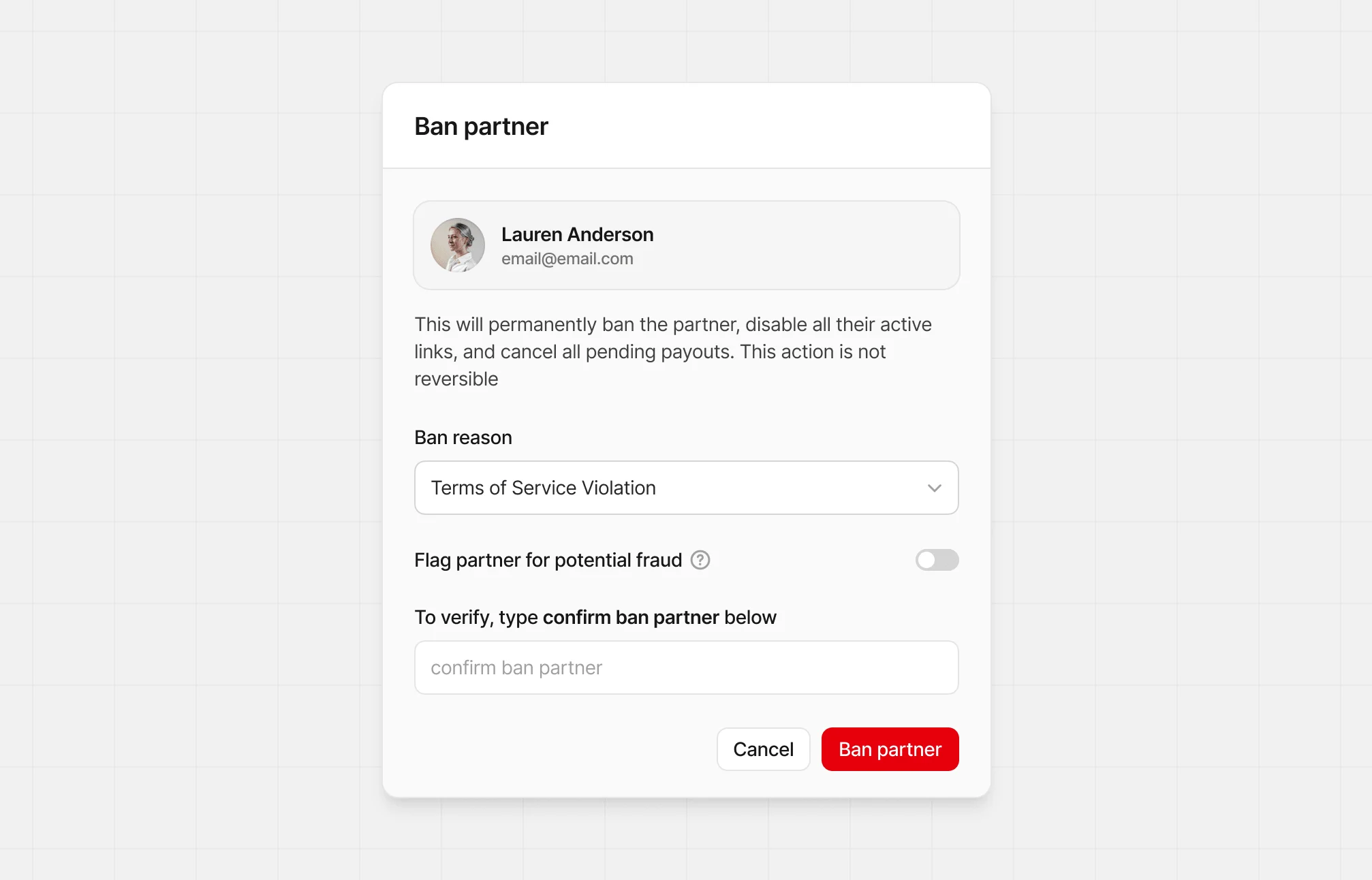
| Reason | Definition |
|---|---|
| Terms of Service Violation | Partner violated your program rules or Dub’s terms of service. |
| Inappropriate or Offensive Content | Partner associated your brand or program link with harmful, explicit, or inappropriate content. |
| Artificial Traffic Generation | Partner used bots, fake clicks, or other methods to inflate traffic. |
| Fraudulent Activity | Partner generated fake clicks, leads, or other tracked actions to earn rewards. |
| Spam or Misleading Content | Partner used deceptive messaging, false claims, impersonation, or unsolicited promotion. |
| Brand Abuse or Trademark Violations | Partner misused your brand name, trademarks, or created confusion. |
Reporting fraud events
When banning a partner, you may want to report them to Dub for further investigation or a network ban. To do this, click the toggle Flag partner for potential fraud, and provide as much detail as you can about the event. Our fraud team will review your submission, and if deemed fraudulent, will ban the partner across the entire network and take necessary action to prevent further abuse.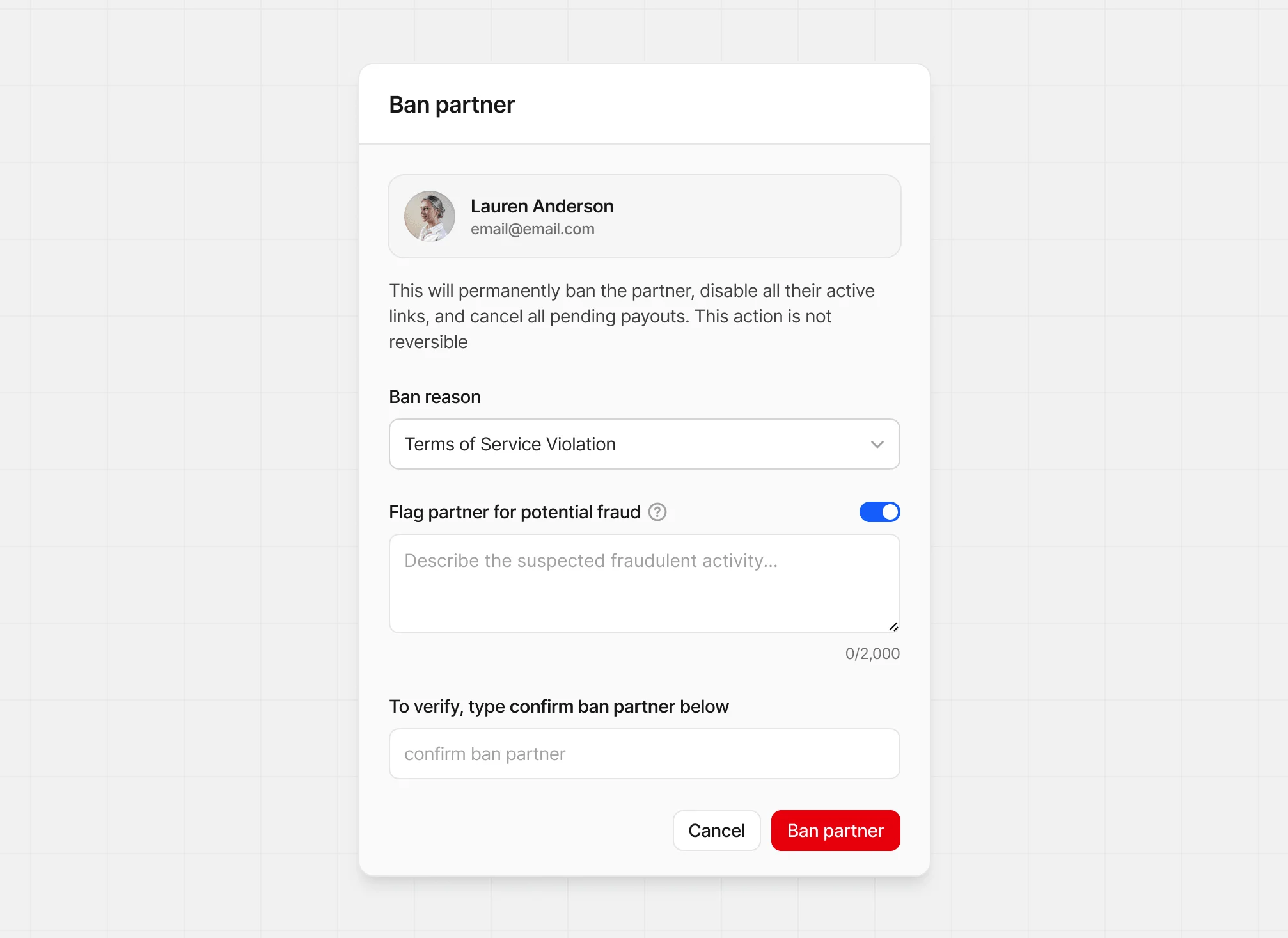
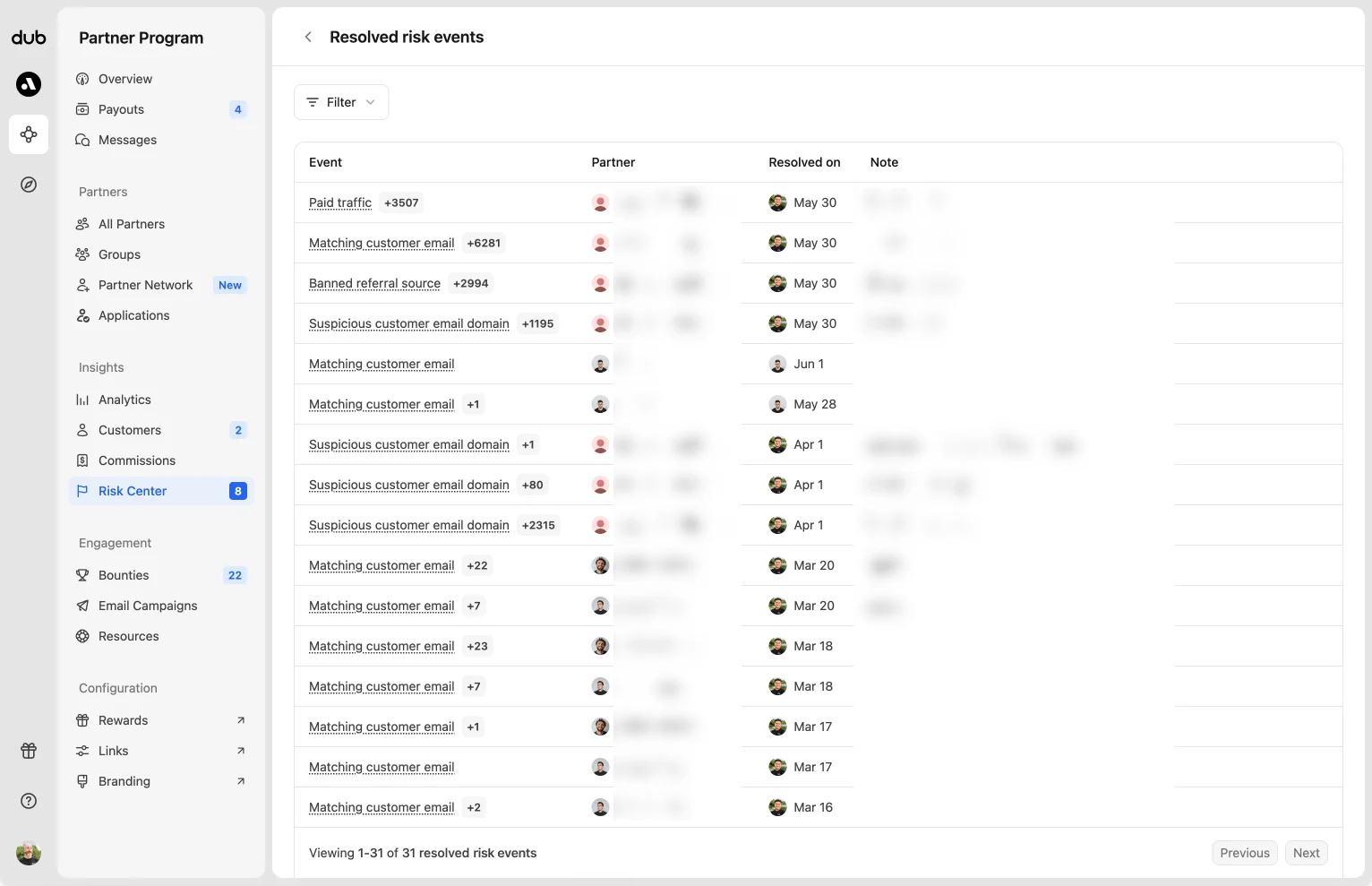
Resolved risk events
To view your resolved events, click the⋮ dropdown in the top right and select Resolved events.
Risk rules
We give you the option to customize risk signal detection settings on a program-level, as well as choose which risk event types you want to receive alerts for. To edit these, click the Risk rules button in the top right.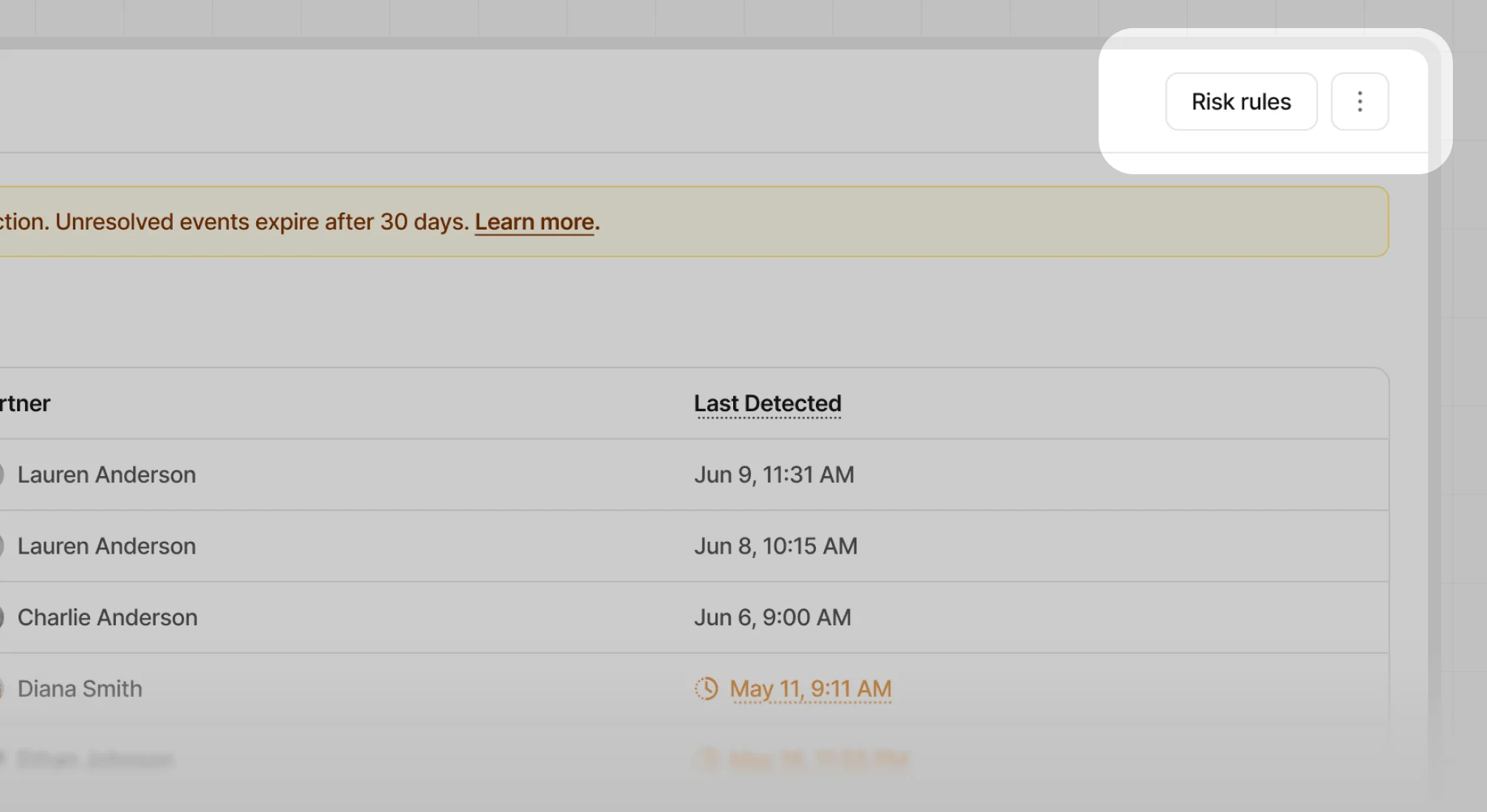
Paid traffic
If your program doesn’t allow traffic from advertisers, ensure this setting is enabled.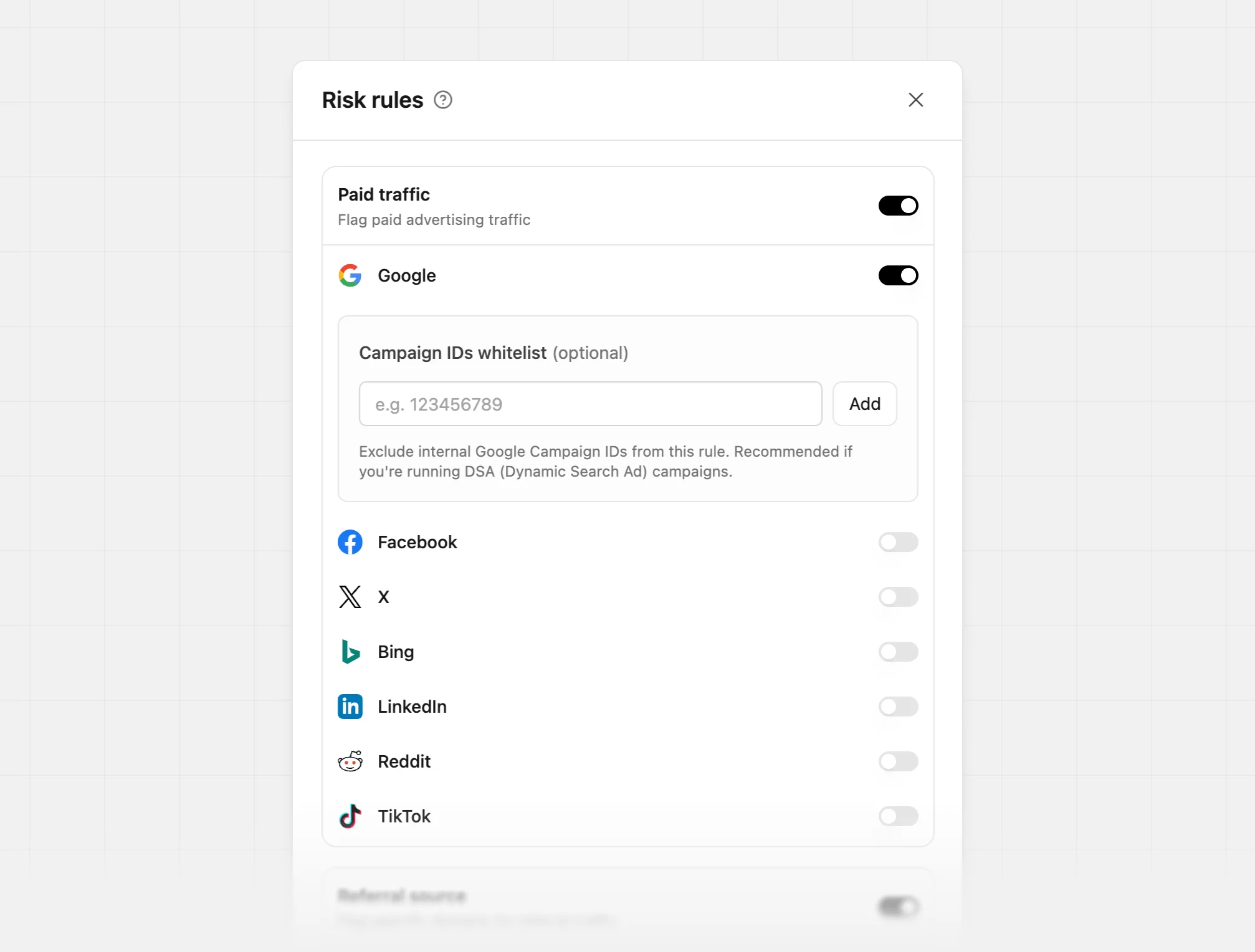
- X
- Bing
- TikTok
Google campaign IDs whitelist
Add your internal Google Campaign IDs here to prevent your own Google Ads traffic from being flagged as fraudulent and associated with a partner.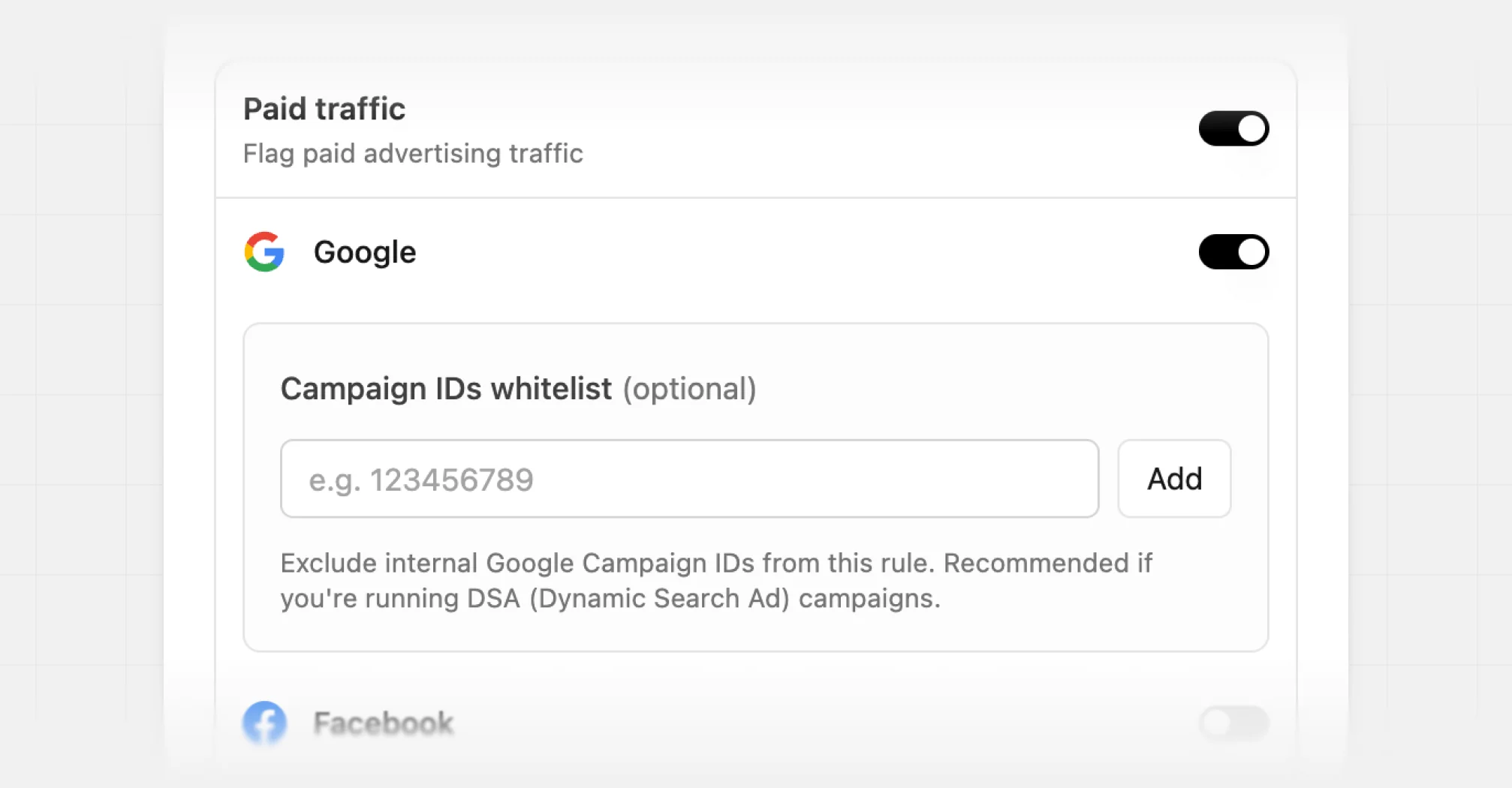
Referral source
If you want to flag traffic from a specific URL, enable this setting and then add the URLs you wish to monitor.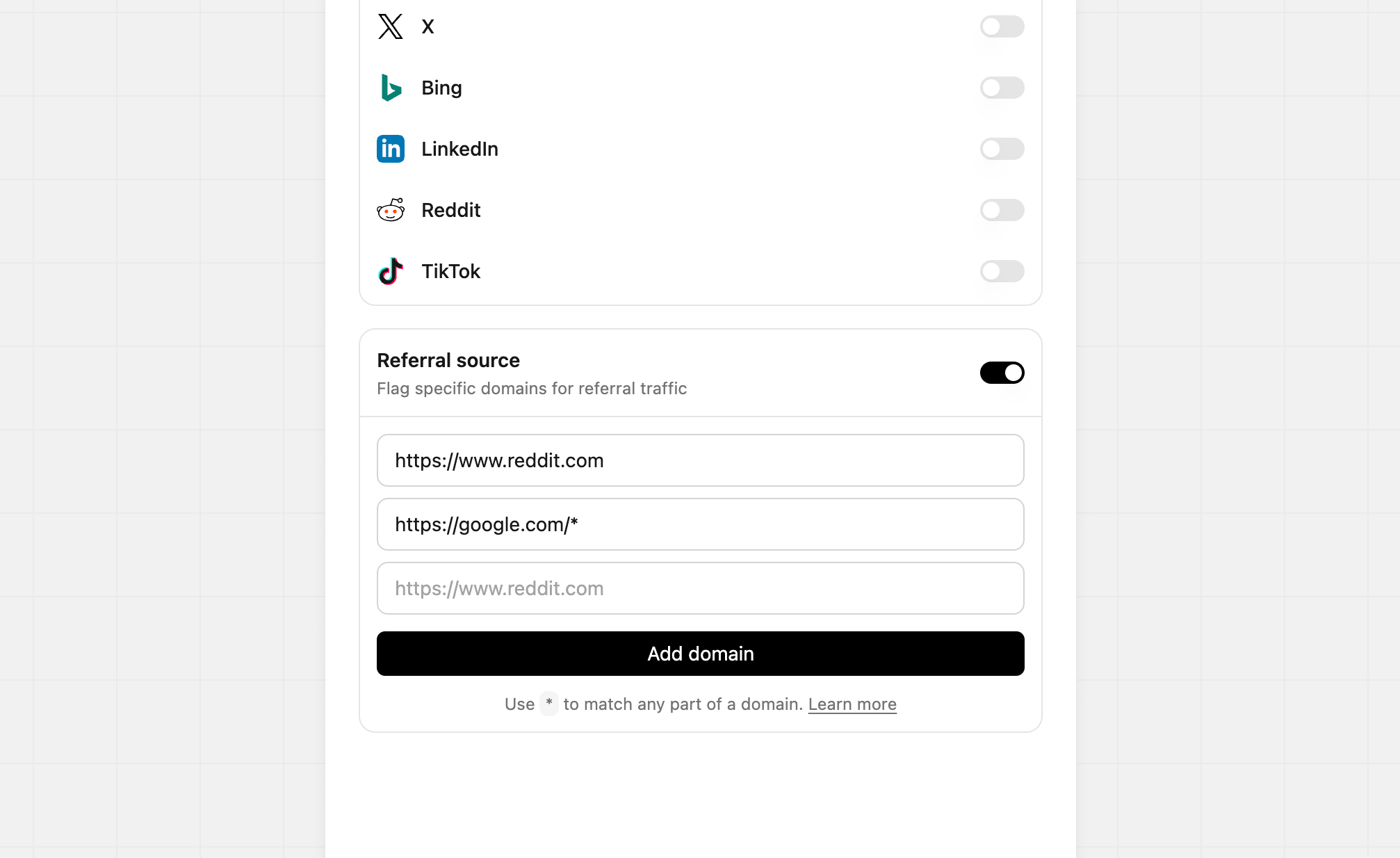
* wildcards to match any part of a domain. These a great when monitoring for a specific page and not all traffic from the specific URL.
Disabling risk settings
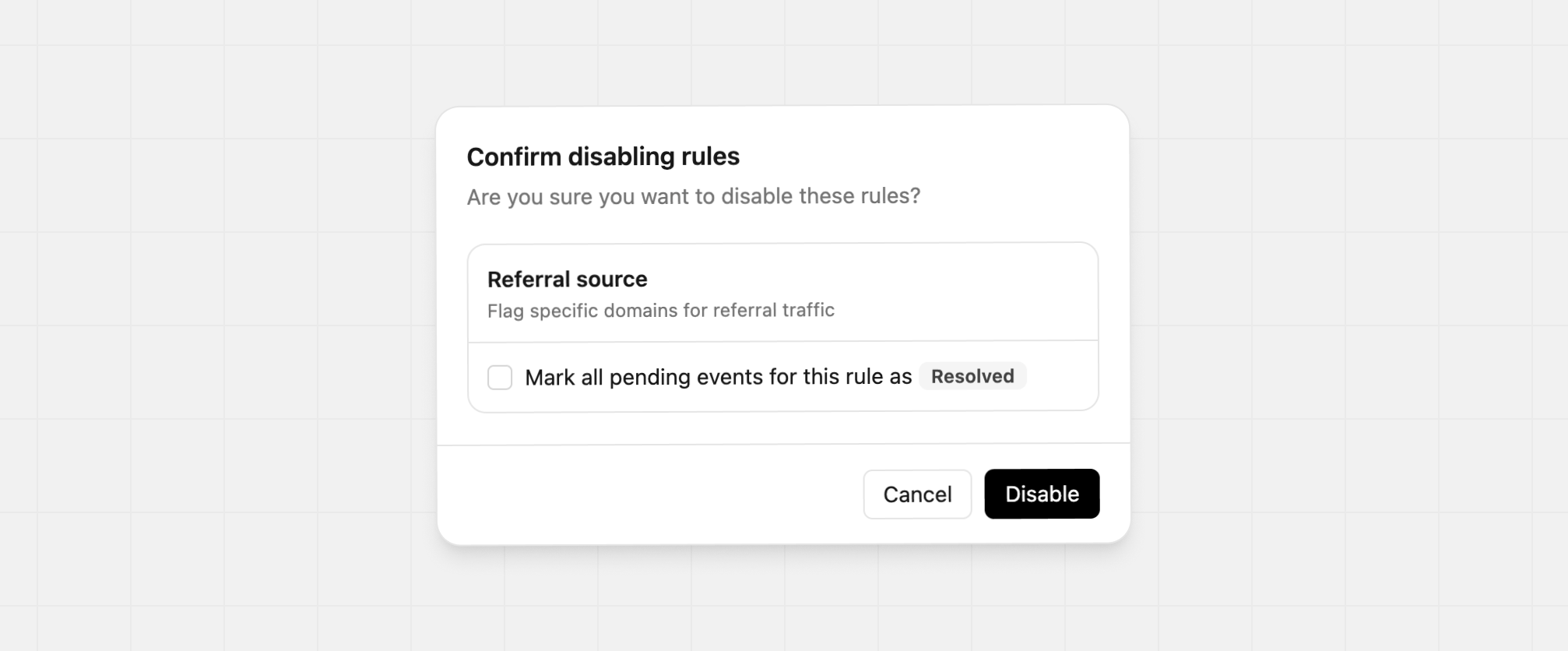
If you don’t want to receive alerts for a specific risk event type, you can disable it by toggling the switch to the right of the event type.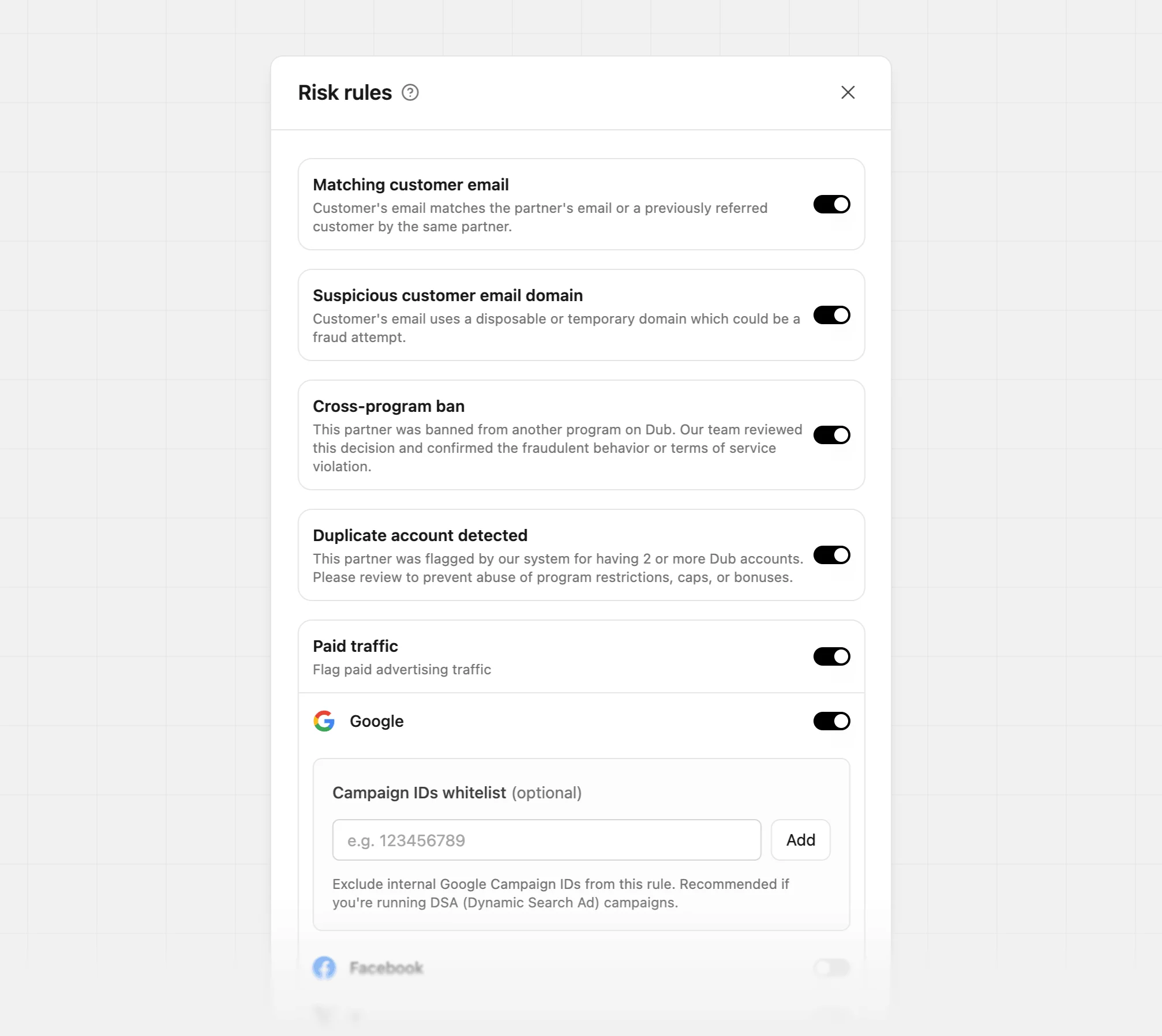
Resolved” in the confirmation modal.